
FREE ONLINE COLORING
Free Online
Coloring Pages
for Kids and Adults
Pick a page, tap a color, and watch it fill in.
No printer, no app, no sign-up.
Free • Nothing to install • Phone, tablet or computer


Color a page online
Pick any Colorful Sunday coloring page, or upload your own. Tap to fill, then save or print your finished picture.
Keyboard shortcuts
- F
- Fill
- B
- Brush
- E
- Eraser
- I
- Pick a color
- P
- Pencil
- H or hold Space
- Move the picture
- [ ]
- Smaller / bigger brush
- + − 0
- Zoom in / out / fit
- Ctrl Z
- Undo
- Ctrl Shift Z
- Redo
- Ctrl S
- Save as PNG
- C
- Compare with the blank page
- D
- Dark / light mode
- ?
- Show this list
- Esc
- Close menus and windows
On a Mac, use ⌘ instead of Ctrl.
Choose a coloring page
New here? Press Choose a page, pick a picture you like, then tap any white space to color it.
How online coloring works
01
Choose a page
Press Choose a page and browse by topic, or type what you feel like coloring: a giraffe, a pumpkin, a favorite character. You can open your own PDF or picture too.
02
Tap to color
Pick a color and tap a white area. It fills right up to the lines. If you would rather do it by hand, switch to the brush and paint it yourself.
03
Save or print
Happy with it? Save your picture as a PNG or a PDF, print it, or send it to someone who will put it on the fridge.
What each button does
The tool is simple on purpose, but a few buttons are easy to miss. Here is the whole set and what each one is for.
The six coloring tools
Fill
Tap a closed area and it fills with your color, right up to the middle of the line, so no white specks are left behind. This is the one you will use most.
Brush
Paint freehand, like a marker. Change the size with the slider, and switch on Stay inside lines if you want the brush to stop at the edge of the shape you started in.
Eraser
Rubs color away. The drawing itself stays exactly as it was.
Pick
Tap a color that is already on your picture to use it again. A small magnifier shows the exact spot you are picking.
Pencil
Draws a black line. Handy for closing a small opening in the drawing so color stops leaking out, or for adding details of your own.
Move
Drag the page around when you are zoomed in. On a touch screen you can also pinch with two fingers to zoom and move.
The top bar
On a phone, Compare and Dark mode are tucked under the button with three dots.
Choose a page
Opens the library. Browse topics, search single pages, filter by tag, or use your own file (PDF, PNG, JPG or WebP). Your own files stay on your device.
Undo and Redo
Step back when a color lands in the wrong place, and forward again if you change your mind.
Reset
Takes all the color off and gives you the blank page back.
Close page
Puts the page away and goes back to the start, ready for a new one.
Compare
Puts a slider over your picture. Drag it to see the blank page next to your colored one.
Dark mode
Dims everything around the page. Easier on the eyes in the evening.
Keyboard shortcuts
Shows the shortcut list. For example, F is Fill, B is Brush and E is Eraser.
Save
Saves your picture as a PNG. The small arrow beside it has more choices: save as PDF, copy, share, or print.
Around the page
Zoom
Zoom in for the tiny spots. Tap the percentage to fit the whole page on the screen again.
Full screen
Hides the rest of the website so your page gets all the room.
Page arrows
Show up when a PDF has more than one page, so you can flip through them.
Colors, palettes and fill styles
Six ready-made palettes cover most pictures, and you are never stuck with them.
- Any color you like. Tap the big color square to mix your own shade.
- Goes well with. A short row of colors that match the one you are using. Nice when you cannot decide what goes next to that green.
- Recent. The last colors you used, one tap away.
- Fill style. Besides solid color, the Fill tool can do a gradient that fades into a second color, or a pattern such as dots, stripes, checks, hearts and stars.
- Close gaps. If color escapes through a line that is not fully closed, set this to Medium or Large and try again.
Small tricks that help
Zoom in before you fill small things. Eyes, buttons and flower centers are much easier to hit when they are big on the screen.
Color leaking out of a shape? There is a tiny opening in the line. Raise Close gaps, or draw across the opening with the Pencil.
On a computer, use the keyboard. F, B and E switch tools, holding Space lets you drag the page, and Ctrl+Z undoes the last step.
Saved pictures are made for paper. They keep the size of the original page, so they still look sharp when you print them.
Online or on paper?
We love paper and pencils, and that will not change. Coloring online is for the other moments: the printer is out of ink, you are in the car or a waiting room, or the classroom has tablets and no crayons.
Looking for a coloring game? This works like one, only calmer: tap and the color fills in, with no timer, no score and no levels to unlock.
It is also a good way to try colors first. Try a few color combinations on the screen, then color the printed page with the one you liked best.
Every page you can color here is also a free PDF. You will find them all on the printable coloring pages hub, ready for A4 or US Letter.
More free tools for people who color
Two little helpers we built for the same reason as this one, plus the whole library of pages to print.
Coloring Page Size Converter
Resize any coloring page to A4, US Letter, A5 or your own size before you print it.
Resize a page →
Color Name Finder
Pick a color or type a hex code to get its name, similar shades, and colors that go well with it.
Find a color name →
Printable Coloring Pages
More than 10,000 free PDF pages sorted by topic, for the days you want real pencils.
Browse all topics →
Not sure what to color first?
These are popular right now. Look for any of them under Choose a page, or print them the classic way.

Raven Coloring Pages34 Free Printables

Easter Lamb Coloring Pages31 Free Printables

Easter Chick Coloring Pages28 Free Printables

Easter Bunny Coloring Pages50 Free Printables

Cute Coloring Pages349 Free Printables

Reindeer Coloring Pages45 Free Printables
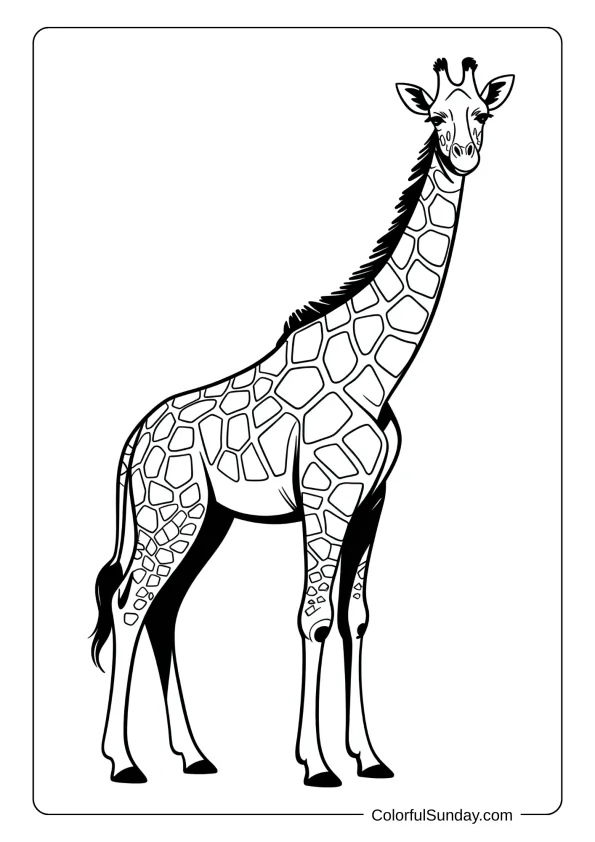
Giraffe Coloring Pages35 Free Printables
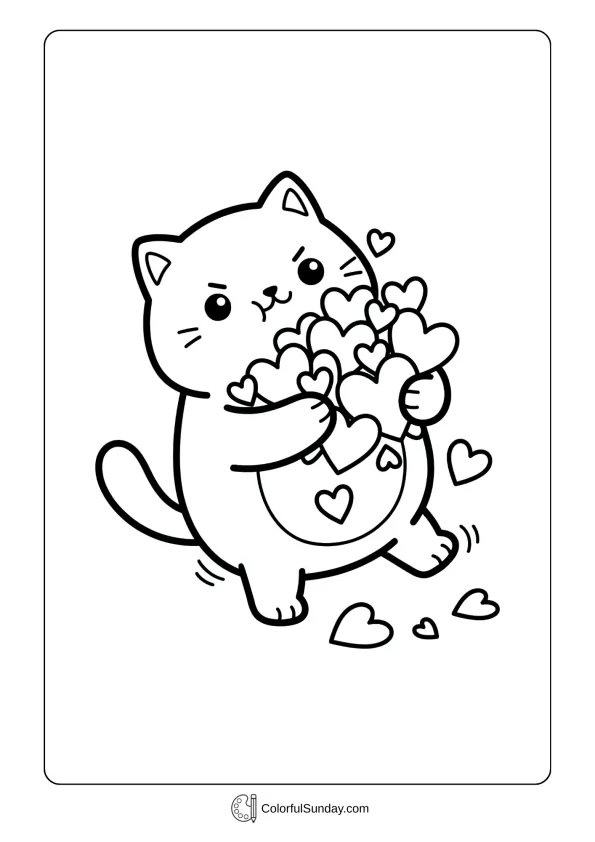
Kawaii Coloring Pages55 Free Printables
Questions about coloring online
Is online coloring free here?
Yes. The tool and every coloring page in it are free. There is no account, no trial, and no limit on how many pages you color.
Is this a coloring game?
You can play it like one. Pick a picture, tap an area and it fills with color, the same way most coloring games work. The difference is that nothing is locked: every page and every color is free from the start, and you can save or print what you make.
Do I need to download or install anything?
No. It runs in your web browser. Open this page, choose a picture, and start.
Does it work on a phone or tablet?
Yes. It is made for touch screens as much as for a mouse: tap to fill, drag to paint, and pinch with two fingers to zoom. It works on iPads, Android tablets, phones, Chromebooks and regular computers.
Can I color my own drawing or PDF?
Yes. Press Choose a page, then Use my own file, and pick a PDF, PNG, JPG or WebP. The file is opened on your own device and is not uploaded to us.
Are my files or pictures uploaded to your server?
No. A file you open stays on your device, and so does everything you color. Your progress is kept in your own browser, and saving, copying and printing all happen on your device. A picture only leaves it when you choose to share it yourself.
How do I save or print my picture?
Press Save for a PNG picture. The small arrow next to it lets you save a PDF, copy the picture, share it, or print it. Saved pictures keep the size of the original page, so they print nicely.
Will my coloring still be there if I close the page?
Usually, yes. Unfinished work is kept in your browser on the device you used, and when you open that page again the tool offers to resume. It remembers your most recent pages. Clearing your browser data removes them, so save anything you want to keep.
Why does the color spill outside the shape?
It happens when the line around the shape has a small opening. Set Close gaps to Medium or Large, or use the Pencil to draw across the opening, then fill again.
Can I print the blank page and color it by hand instead?
Of course. Every page is a free PDF on our coloring pages hub. If it does not fit your paper, the size converter will sort that out.
Can I use my colored pictures?
Yes, for personal and classroom use: hang them up, send them to family, use them in a lesson. The details are in our licensing policy.